


Screen blackouts during calls frustrate many smartphone users in Phoenix. Recent mobile support reports show display related issues remain among the most reported phone complaints. In addition, overheating contributes to many call performance problems during summer months. If your screen turns off and stays dark during conversations, several causes may exist. Understanding smartphone proximity sensor calibration can help solve this issue before it becomes a daily annoyance.
Why Phone Screens Turn Black During Calls
Most smartphones use a proximity sensor near the front camera. This sensor detects your face during a call. As a result, the phone turns off the display to prevent accidental touches. However, software glitches sometimes affect sensor accuracy and performance.
Many users assume the display itself has failed. In reality, the sensor often causes the problem. Furthermore, dirt, screen protectors, and software bugs may interfere with normal operation. Therefore, identifying the exact trigger becomes the first step.
Modern devices include many features that manage display behavior. For example, some wearable devices reviewed in smartphone for your wrist discussions use sensors to control screen activity. Likewise, smartphones depend heavily on sensor accuracy during calls. Small errors can create frustrating screen blackouts.
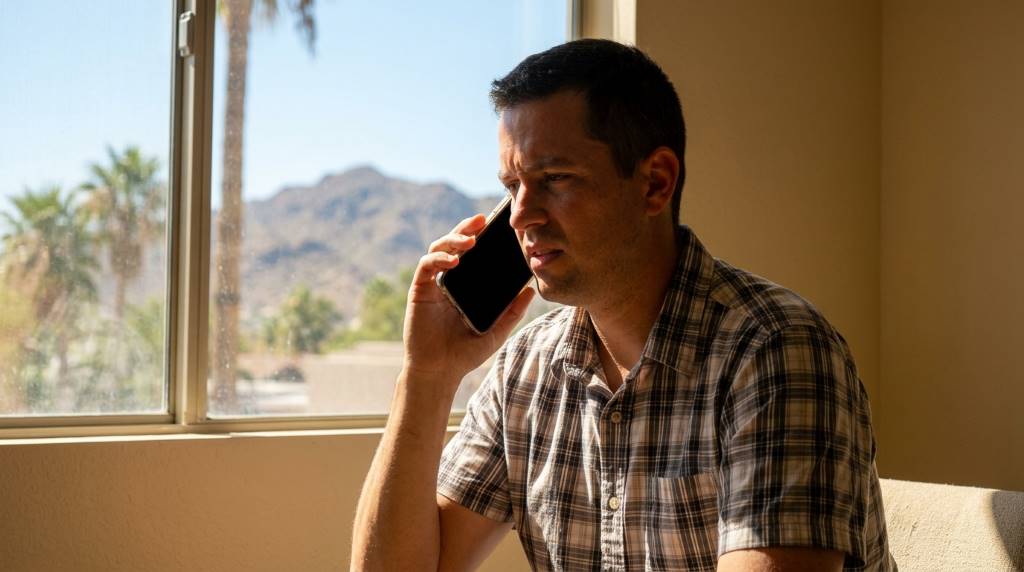
How Phoenix Weather Affects Smartphone Calls
Phoenix experiences extreme summer temperatures for several months each year. Phones exposed to direct sunlight often become unusually hot. Consequently, thermal management systems may reduce display functions. This response protects internal components from damage.
Many residents take calls while driving or walking outdoors. During these situations, the device absorbs heat quickly. As temperatures rise, sensor readings may become less reliable. Therefore, display behavior may become unpredictable during longer conversations.
A unique issue appears when users move between air conditioned buildings and outdoor heat. Rapid temperature changes sometimes create condensation around internal components. Although rare, this condition can affect sensor performance temporarily. Few blogs discuss this climate related factor despite its relevance in Phoenix.
Check Your Screen Protector First
A poorly aligned screen protector commonly causes call display issues. Some protectors cover proximity sensors partially. As a result, the sensor constantly believes your face remains near the device. The display then stays black throughout the call.
Remove the protector temporarily and test several calls. If the problem disappears, you have identified the cause. Next, install a protector designed specifically for your phone model. This simple fix often resolves persistent blackout complaints.
Low quality tempered glass products create additional challenges. They sometimes contain uneven edges near sensor areas. Therefore, choosing a well fitted accessory helps maintain proper functionality. Prevention usually costs less than future repairs.
Clean the Sensor Area Properly
Dust accumulates quickly in dry desert environments. Phoenix residents often encounter airborne particles throughout the year. Consequently, sensor openings can become partially blocked. This interference affects how the phone detects nearby objects.
Use a microfiber cloth to clean the top front section carefully. Avoid excessive pressure during cleaning. Instead, use gentle circular motions across the sensor area. Consistent maintenance helps preserve accurate readings.
Never apply harsh cleaning chemicals directly to the display. These products may damage protective coatings. Furthermore, residue can worsen sensor performance. A slightly damp cloth usually provides sufficient cleaning power.
Update Your Smartphone Software
Software updates frequently include sensor related improvements. Manufacturers release fixes after identifying user complaints. Therefore, outdated operating systems sometimes cause unnecessary call display problems. Updating your device should remain a priority.
Check system settings and install available updates. Afterward, restart the phone completely. This process clears temporary software conflicts that affect hardware communication. Many users notice improvements immediately after updating.
Several useful tools highlighted among essential apps to have can also help monitor device health. Some diagnostic applications identify sensor problems quickly. Consequently, troubleshooting becomes more efficient.
Test the Proximity Sensor
Use Built In Diagnostic Tools
Many Android devices include hidden diagnostic menus. These tools test hardware components individually. As a result, you can determine whether the sensor functions correctly. Accurate testing prevents unnecessary repair expenses.
Access methods vary by manufacturer and model. Therefore, consult official support documentation first. Once inside the testing menu, perform several sensor checks. Record the results for future reference.
Try Third Party Testing Apps
Reliable diagnostic applications provide sensor data in real time. They show whether the sensor detects nearby objects accurately. Moreover, these tools help identify intermittent issues. Consistent readings usually indicate healthy hardware.
Run multiple tests under different lighting conditions. Then compare the results carefully. If readings remain inconsistent, further troubleshooting may become necessary. Objective data simplifies decision making.
Restart Call Related Settings
Phone applications sometimes store corrupted temporary files. These files interfere with normal calling functions. Consequently, unusual screen behavior may appear during conversations. Resetting call settings can help restore stability.
Begin by clearing the phone application’s cache. Next, restart the device completely. Afterward, place several test calls. Many software related display issues disappear after this process.
If problems continue, reset network settings as well. Although this step removes saved connections, it often resolves communication conflicts. Therefore, it remains a useful troubleshooting option. Always note important passwords beforehand.
Disable Problematic Third Party Apps
Some applications request display control permissions. These permissions may conflict with calling features. As a result, unexpected screen blackouts can occur. Identifying problematic apps requires a systematic approach.
Boot the device into safe mode temporarily. This mode disables most third party applications. If the blackout issue disappears, an installed application likely causes the problem. Then remove recent additions one at a time.
Business users often install productivity tools and communication platforms. Before selecting devices, many professionals review choose a smartphone for business resources for compatibility guidance. Application conflicts become less common when software ecosystems remain organized. Preventive planning saves time later.
Prevent Overheating During Calls
Phoenix temperatures create unique challenges for mobile devices. Excess heat affects batteries, sensors, and processors. Consequently, display behavior may change unexpectedly during calls. Managing temperature becomes essential.
Keep the device out of direct sunlight whenever possible. Additionally, avoid charging while making lengthy calls outdoors. Both activities generate extra heat. Combined stress increases malfunction risks.
Remove thick protective cases during extremely hot conditions. Cases sometimes trap heat around internal components. Therefore, better airflow helps maintain stable operating temperatures. Small adjustments often produce noticeable improvements.
Check Accessibility and Display Settings
Some accessibility features influence screen behavior. Users occasionally enable these options accidentally. As a result, the display may remain off longer than expected. Reviewing settings helps eliminate confusion.
Inspect display timeout preferences carefully. Then verify call related settings within the phone application. Certain manufacturers include additional screen management options. Therefore, settings vary across devices.
Restore default display configurations if necessary. This step removes unusual customizations that affect functionality. Furthermore, default settings provide a reliable testing baseline. Simplicity often reveals the root cause.
When Hardware Repair Becomes Necessary
Not every blackout issue results from software problems. Physical damage can affect sensor performance permanently. Cracked displays often interfere with sensor communication. Consequently, repairs may become unavoidable.
Water exposure presents another common concern. Even minor moisture can damage sensitive components. Therefore, professional inspection helps determine the extent of the problem. Early diagnosis prevents further complications.
Authorized repair technicians possess specialized testing equipment. They can measure sensor functionality accurately. Moreover, they identify hidden hardware faults quickly. Professional evaluation often saves valuable troubleshooting time.
Practical Prevention Tips for Phoenix Residents
- Keep your phone out of direct sunlight.
- Clean the sensor area every week.
- Use quality screen protectors.
- Install software updates promptly.
- Avoid extended outdoor charging sessions.
- Monitor device temperature regularly.
- Restart the phone weekly.
- Remove unnecessary applications.
These habits reduce many display related issues. More importantly, they improve overall device performance. Consistent maintenance prevents small problems from becoming serious. Prevention remains the most cost effective strategy.
Conclusion
Screen blackouts during calls usually stem from sensor interference, software issues, overheating, or hardware faults. Phoenix weather adds extra stress that many users overlook. Fortunately, most cases respond well to cleaning, updates, setting adjustments, and temperature management. Start with simple troubleshooting steps before considering repairs. If the issue persists, schedule a professional inspection and restore reliable calling performance today.
FAQs
Why does my phone screen stay black after I move it away from my face?
The proximity sensor may be blocked, dirty, misaligned, or malfunctioning.
Can Phoenix heat cause call screen problems?
Yes, excessive heat can affect sensor accuracy and overall phone performance.
Will removing my screen protector help?
Yes, an improperly installed protector often interferes with proximity sensors.
Should I update my phone to fix screen blackouts?
Yes, software updates frequently include fixes for sensor and display issues.
When should I seek professional repair?
You should seek repair if cleaning, updates, and settings changes do not solve the problem.